
FAQ
The game or SteamVR crashes?
Section titled “The game or SteamVR crashes?”When using Pro Driver, close the SteamVR drivers of other similar running software (such as LIV and Natural Locomotion) to avoid conflicts with Pro Driver.
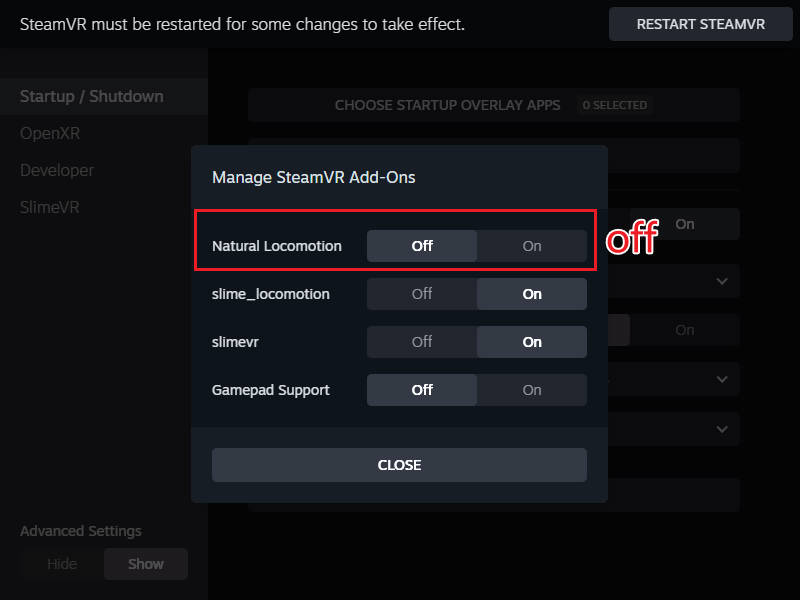
If the problem persists, you can use the Standard Driver, which does not cause game or SteamVR crashes.
SteamVR keeps crashing, how to fix it?
Section titled “SteamVR keeps crashing, how to fix it?”-
First, start the Slime Locomotion software with SteamVR closed.
-
Click the “Uninstall Driver” button.
-
Restart SteamVR.
-
Disable the SteamVR drivers of similar running software in the settings.
-
Install the driver again (“Install Driver”), and restart SteamVR as prompted — this should resolve the crash issue.
After startup, body posture can be controlled, but movement via the controllers is not possible?
Section titled “After startup, body posture can be controlled, but movement via the controllers is not possible?”Pro Driver disables the controller joysticks; in-game movement is only possible through body posture.
Why isn’t hip tracking working?
Section titled “Why isn’t hip tracking working?”First, enable hip direction tracking. Trackers should display properly in SteamVR interface. The game needs to be set to track headset direction movement with continuous movement for hip direction tracking to work.
For more help, see the Communication and Feedback page.